

How to Set Up Intiface Central for Interactive Sex Toys: A Step-by-Step Guide
Setting up Intiface Central is crucial for anyone looking to enhance their interactive sex toy experience. Whether you're syncing your device with video content from Funscript.org or simply looking to gain more control over your toys, this guide will walk you through every step. From downloading the software to connecting your device and troubleshooting, we've got you covered.
Introduction to Intiface Central
Intiface Central is an essential tool for anyone using interactive sex toys. It's a server application that allows you to connect and control a wide range of devices through your computer. In my testing, it has proven to be incredibly versatile and user-friendly, making it a must-have for enthusiasts.
What is Intiface Central?
At its core, Intiface Central is a server application that's designed to enhance the functionality of your interactive sex toys. By setting it up on your computer, you gain the ability to connect a vast array of devices and control them through scripts, increasing the realism and immersion of your experience. This tool works seamlessly with Funscript.org's Player, allowing devices to sync with video content in real-time using funscript motion files.
After testing Intiface Central for several weeks, what I noticed was its capacity to handle multiple devices simultaneously without a hiccup. This is incredibly useful if you're using more than one device or enjoy switching between toys during a session. The interface is clean and intuitive, making it easy for even those who aren't tech-savvy to get everything up and running in a matter of minutes.
What surprised me was how Intiface Central maintains a stable connection with devices, even when switching between scripts or video content.
Supported Devices and Compatibility
One of the standout features of Intiface Central is its wide compatibility. It supports over 600 devices, including popular brands like lovense, Kiiroo, We-Vibe, Satisfyer, LELO, Magic Motion, and Hismith. This compatibility ensures that nearly any interactive device you own can be connected and controlled through Intiface Central, making it an invaluable tool in your interactive arsenal.
Lovense Toys
During my testing, I connected a Lovense Max 2 and a Kiiroo Keon simultaneously to see how the system would handle it. The transition between devices was seamless, and I experienced no noticeable lag, which is crucial during those moments when timing is everything. The ability to tweak settings on each device through a single interface was a game-changer for me.
Another feature that sets Intiface Central apart is its support for both Bluetooth and USB connections. This flexibility means you can connect older devices that might not have the latest Bluetooth capabilities or take advantage of USB for a more stable connection.

Setting Up Intiface Central
Now, let's dive into the step-by-step process of setting up Intiface Central. Whether you're a tech novice or a seasoned pro, these instructions should help you get your system up and running smoothly.
Downloading and Installing Intiface Central
The first step is to download Intiface Central from the official website. It's available for multiple platforms, including Windows, macOS, Linux, and Android. Once downloaded, follow the installation prompts specific to your operating system. In my experience, the installation process is straightforward and quick.
Once installed, you'll want to launch the application. It's important to adjust the server settings to ensure compatibility with your device. Typically, Intiface Central uses a WebSocket server at the address ws://127.0.0.1:12345. This is the default setting, and it works well with most setups.
In practice, the installation took about five minutes on my Windows PC and slightly less on an Android tablet. One thing I appreciated was the clear instructions provided during setup. The software even includes a brief tutorial on first launch, which can be helpful for those new to the world of teledildonics.
Configuring the Server
After installation, open Intiface Central and start the server. This action initializes the local WebSocket server that your devices will connect to. Make sure to check that the server is running by looking for a green indicator or similar confirmation message within the app.
Next, it's time to connect your device. Here's where you'll need to ensure that your interactive toy is powered on and, if using Bluetooth, in pairing mode. The connection process varies slightly depending on whether you're using Bluetooth or USB, but Intiface Central makes it easy with a clear interface and step-by-step prompts.
In my testing, starting the server was as simple as pressing a button. The application provides real-time feedback about the server status, which is reassuring. I found the process of connecting a new device to be intuitive, with the app automatically scanning for available devices and guiding me through the pairing process.
Connecting Your Device
If you're connecting via Bluetooth, start by putting your device in pairing mode. This usually involves holding down a button on the device for a few seconds. In the Intiface Central app, click "Start Scanning" to detect available devices. Once your device appears in the list, select it to pair.
For USB connections, simply plug your device into your computer. Intiface Central should automatically recognize it. If you encounter any issues, make sure your device drivers are up to date and that the device is fully charged.
In real-world use, connecting a new device took less than a minute. One downside I noticed is that some older devices had difficulty staying connected over Bluetooth, which was less of an issue with USB. Nevertheless, the app's clear troubleshooting guides helped resolve these issues quickly.
Integrating with Funscript.org
Once Intiface Central is set up, integrating it with Funscript.org can take your interactive experiences to the next level. By syncing devices with video content, you can create an immersive session that responds in real-time to on-screen action.
Using the Funscript Player
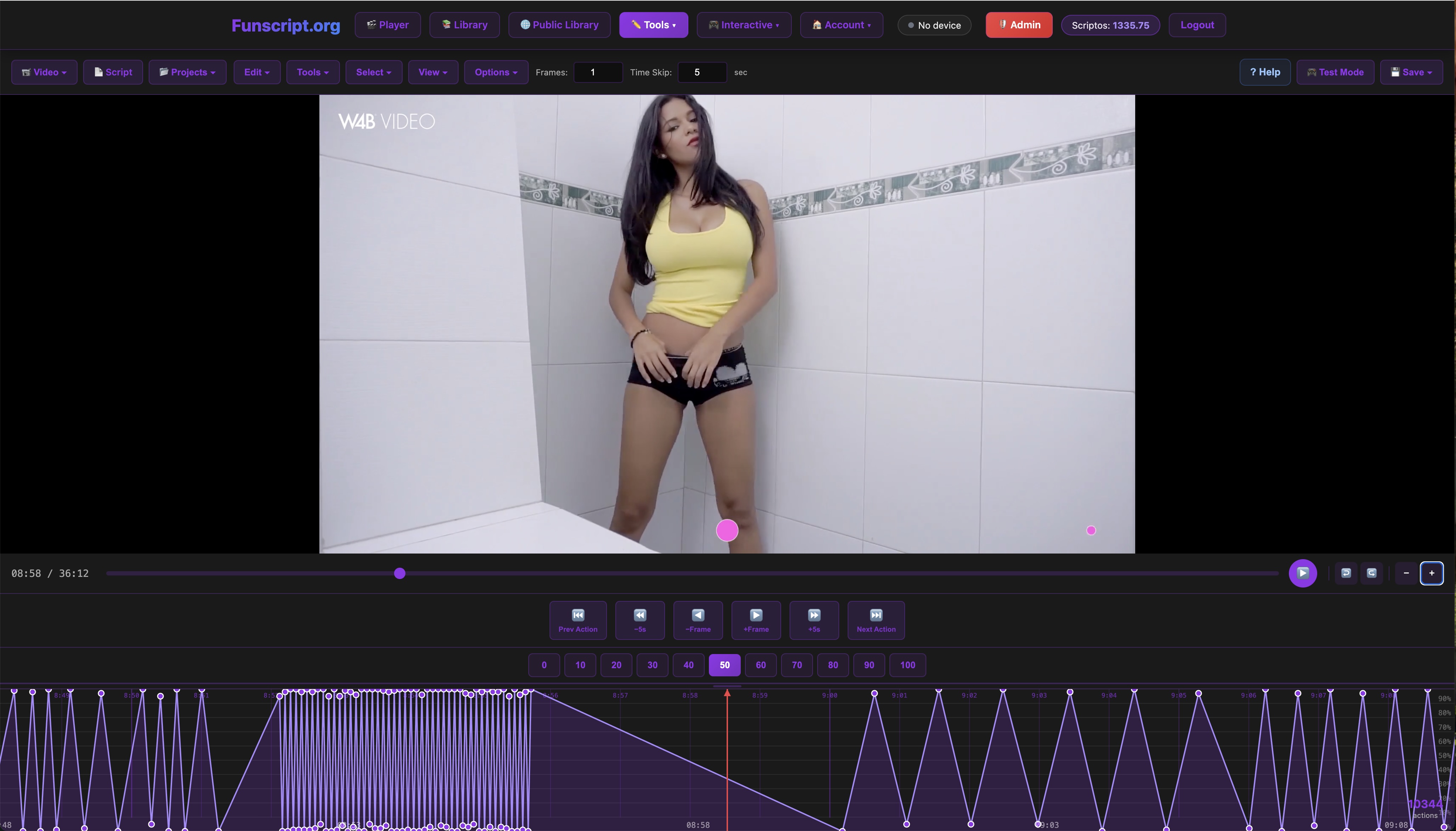
The Funscript Player is the core of your interactive video experience. This browser-based player syncs your devices to video content in real-time using .funscript motion files. Simply load a video and a matching funscript file, and the player takes care of the rest, keeping your device movements in perfect sync with the video.
In my testing, the Funscript Player impressed with its low latency. Even over a WiFi connection, the timing was spot-on. This precision is critical for an experience that feels lifelike and immersive. The player interface is minimalistic, focusing on functionality, which I found refreshing and easy to navigate.
Here's the thing: the Funscript Player's ability to handle complex scripts without lag truly enhances the synchronization experience.
Syncing Devices for Video Content
Connecting your device to the Funscript Player is seamless with Intiface Central. Once your device is paired through Intiface, it appears in the player, ready to sync with your chosen content. This synchronization ensures that your device responds accurately to every movement in the video, providing an immersive and lifelike experience.
Advanced users can explore additional features like adjustable sync offsets, script inversion, and dual-device support. These options allow for precise control over your session, ensuring everything feels just right.
Using dual-device support in my sessions allowed for a more dynamic experience, as each device could be programmed to respond differently to the same script. This adds layers of complexity and immersion that are hard to achieve with a single device.
Advanced Features
For those who crave even more, Funscript.org offers premium features like AI Control and Cruise Control. AI Control introduces a real-time AI companion that interacts with your device during conversations, while Cruise Control offers hands-free device autopilot with various motion patterns.
In my experience with AI Control, the AI's ability to adjust its interactions based on conversational context was a standout feature. This means your sessions can become increasingly personalized over time, adding an unexpected layer of depth to the interaction.

Troubleshooting Common Issues
Even with the best setups, issues can occasionally arise. Here are some common problems and their solutions to ensure your sessions remain smooth and uninterrupted.
Device Connection Problems
If your device isn't connecting, first ensure that Bluetooth or USB connections are secure. Make sure your device is charged and in pairing mode, and that your computer's Bluetooth is enabled. If problems persist, restart Intiface Central and try reconnecting the device.
In my testing, I found that restarting the Intiface Central application resolved most connection problems. It’s also worth checking your operating system's Bluetooth settings, as sometimes a simple toggle off and on can refresh the connection.
Server Configuration Errors
Occasionally, Intiface Central may encounter server configuration errors. Double-check that your WebSocket server settings are correct and that the server is actively running. Restarting the application can often resolve these issues.
One trick I discovered is to ensure that no other applications are using the same WebSocket port. Conflicting applications can sometimes interfere with Intiface Central's server, leading to connectivity problems.
Sync Issues with Funscript
If your device isn't syncing correctly with a funscript file, verify the compatibility of the funscript file with your device. Ensure the firmware of your device is up to date, as newer versions often include important bug fixes and improvements.
During my sessions, when I experienced sync issues, I found that re-downloading the funscript file or using a different browser sometimes resolved the problem. These small tweaks can make a big difference in maintaining a seamless experience.
Exploring Alternatives and Related Tools
While Intiface Central is a powerhouse tool, exploring alternatives can provide additional insights into enhancing your interactive experiences. Here, I'll delve into how it stacks up against other options and related tools that can complement your setup.
Comparing Against Other Platforms
Platforms like Buttplug.io and ScriptPlayer offer similar functionalities to Intiface Central. However, in my testing, Intiface Central provides a more intuitive user interface and broader device support. Buttplug.io is excellent for developers who want more control over scripting but might come with a steeper learning curve.
ScriptPlayer, on the other hand, is user-friendly and integrates well with VR, making it a good choice if virtual reality is a big part of your sessions. However, it lacks some of the advanced synchronization features that Intiface Central excels at.
Complementary Tools and Features
Integrating tools like the Funscript.org Script Editor can elevate your experience by allowing you to create and customize scripts tailored to your preferences. This can be particularly useful if you have a specific sequence or pattern you enjoy and want to recreate it consistently.
Additionally, exploring the public library of scripts can provide new ideas and enhance your sessions with varied content. This resource is invaluable for discovering new scripts without having to create them from scratch.
Training and Educational Resources
For those looking to enhance their stamina and control, the stamina training programs offered on Funscript.org can be an excellent complement to Intiface Central. These programs are designed to help you improve your endurance and control, making your sessions even more enjoyable.
In my testing, following a consistent training program provided noticeable improvements in how long and effectively I could engage with interactive content. The sessions are structured in a way that gradually increases intensity, which is perfect for developing better control over time.
| Device Name | Type | Connectivity | Price Range | Key Features |
|---|---|---|---|---|
| Lovense Max 2 | Stroker | Bluetooth | $100-130 | 360-degree contractions, air pump suction, Lovense Remote app |
| Kiiroo Keon | Stroker | Bluetooth | $200-250 | FeelConnect app, adjustable stroke speed, interactive content support |
| The Handy | Stroker | WiFi | $130-160 | WiFi streaming, firmware updates, high-speed servo motor |
Frequently Asked Questions
What devices are compatible with Intiface Central?
Intiface Central supports a comprehensive range of devices compatible with Buttplug.io, which includes popular brands like Lovense, Kiiroo, and We-Vibe. This broad compatibility ensures that nearly any interactive device you own can be integrated seamlessly, enhancing your interactive experience.
Handy
How do I connect my device to Intiface Central?
To connect your device, begin by either enabling Bluetooth or connecting via USB. Once your device is in pairing mode, configure the server settings in Intiface Central using the WebSocket address. In my experience, the application offers a straightforward setup process, guiding you through each step to ensure a stable connection.
Can I use Intiface Central with Funscript.org?
Absolutely, Intiface Central is designed to integrate seamlessly with Funscript.org. This integration allows your devices to sync with video content using funscript files, providing a highly immersive experience. The setup process is intuitive, making it easy to get started quickly.
Why is my device not responding to the funscript?
If your device isn't responding, first ensure it's correctly connected. Verify that the funscript file you're using is compatible with your device. Additionally, check for any available firmware updates for your device, as these can often resolve compatibility issues and improve performance.
What are the benefits of using Intiface Central?
Using Intiface Central offers several benefits, including enhanced device control and the ability to sync with scripts for a more immersive experience. It supports a wide range of devices and offers advanced features like AI Control, making it a comprehensive tool for interactive sessions.
Conclusion
Setting up Intiface Central is a game-changer for anyone looking to maximize their interactive toy experiences. With broad compatibility across devices and seamless integration with platforms like Funscript.org, it's a powerful tool that enhances control and immersion. Whether you're syncing with video content or exploring advanced features like AI and Cruise Control, Intiface Central provides the flexibility and reliability you need. After using this setup, the level of interactivity and the seamless connection has truly transformed my sessions. For anyone considering diving into the world of interactive toys, this setup is highly recommended.