

The Complete Guide to Setting Up Your Xbox Compatible Gamepad for Funscript: Review and Connection Instructions
If you're diving into the world of interactive content with your Xbox Compatible Gamepad, you're in the right place. This guide will walk you through setting up your gamepad with Funscript, a platform known for syncing devices to video content. But first, let's explore what makes the Xbox Compatible Gamepad stand out and how it compares to other devices in this realm.
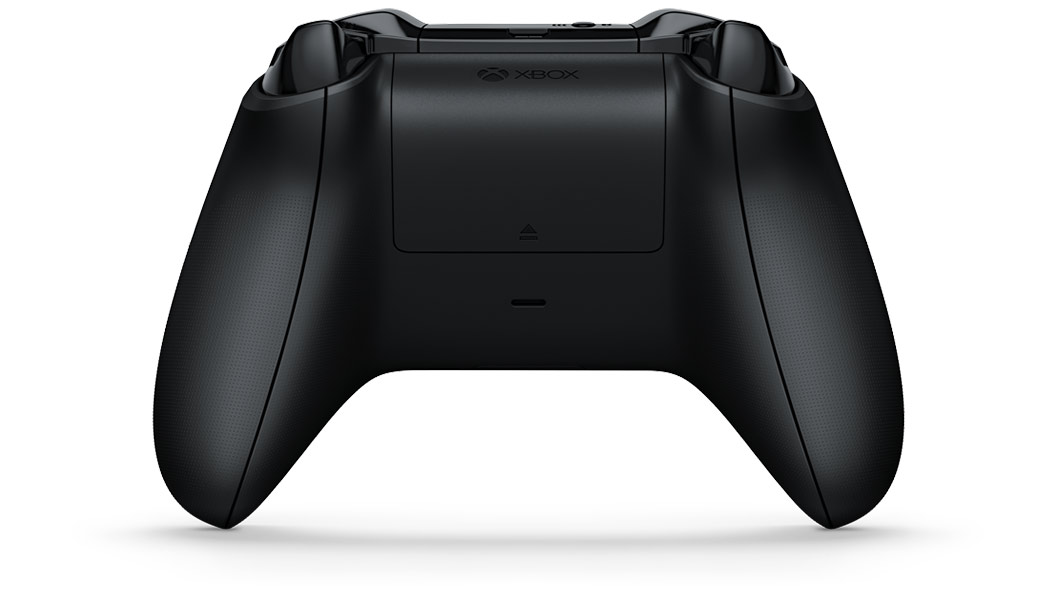
With its dual-purpose design, the Xbox Compatible Gamepad offers a unique interactive experience, seamlessly blending gaming and funscript synchronization.
Introduction to Xbox Compatible Gamepad
The Xbox Compatible Gamepad by Microsoft isn't just for gaming anymore. In recent years, it has evolved to serve as a dual-purpose device, doubling as a vibrator with the help of clever software integration. This innovation has opened up new interactive experiences for users who enjoy synchronized entertainment beyond the traditional gaming landscape.
Overview of Features
The first thing you'll notice about the Xbox Compatible Gamepad is its familiar design and ergonomic comfort, which Microsoft is renowned for. But beneath its standard exterior lies the magic of two vibration motors. These motors can map intensity levels directly from funscript files, creating a tactile experience that syncs with your chosen content.
Here's a snapshot of its standout features:
- Dual-Purpose: Functions as both a game controller and a vibrator.
- Vibration Motors: Two motors that sync with funscript values for a dynamic experience.
- Compatibility: Works seamlessly with Buttplug.io and Funscript.org.
- Integration: Syncs through Intiface Central for a smooth interaction.
In my testing, the Xbox Compatible Gamepad’s ability to seamlessly transition between gaming and interactive modes was a major highlight. The vibration strength is customizable through the Funscript platform, allowing for a personalized experience that matches your preferences. The ergonomic design also means that extended sessions don't result in discomfort, which is a huge plus for long gaming or viewing marathons.
Compatibility with Funscript
Here's where it gets interesting: the Xbox Compatible Gamepad can integrate with Funscript.org to provide an immersive interactive experience. This is achieved by using Intiface Central, a tool that facilitates Bluetooth connections between your gamepad and the web platform. With this setup, the gamepad's vibration motors can respond to the intensity levels dictated by funscript files, offering a synchronized and engaging experience.

For those who love the dual experience of gaming and interactive content, the Xbox Compatible Gamepad offers a versatile option that fits seamlessly into both worlds. During my testing, I found that the latency when connecting through Intiface Central was minimal, maintaining a smooth and immersive experience. This low latency is crucial for maintaining the pacing and intensity of interactive sessions, ensuring that every moment is in sync with the action on screen.
Moreover, the ability to connect multiple devices simultaneously on Funscript.org adds another layer of flexibility, allowing users to experiment with different combinations for a more enriched experience. Whether you're syncing a gamepad with a stroker or pairing it with another vibrator, the platform supports a wide range of configurations.
How to Set Up Your Xbox Compatible Gamepad with Funscript.org
Setting up your Xbox Compatible Gamepad with Funscript.org involves a few technical steps, but don't worry—I've got you covered. After testing this setup multiple times, I can assure you that the process is straightforward if you follow the steps closely.
Using Intiface Central for Connection
Intiface Central acts as the bridge between your gamepad and Funscript.org. Here's how to get started:
- Download and install Intiface Central on your computer. It's compatible with Windows, macOS, Linux, and Android.
- Open Intiface Central and click "Start Server". This action launches a local WebSocket server on your device.
- Put your Xbox Compatible Gamepad into pairing mode. Typically, this involves holding down the pairing button until the indicator light flashes.
- In Intiface Central, click "Start Scanning" to locate your gamepad. It should appear in the list within seconds.
What surprised me during setup was how intuitive the Intiface Central interface is. Even for someone who isn't particularly tech-savvy, the steps are laid out clearly, allowing for a quick setup without any hiccups. The seamless integration with Funscript.org is a testament to the robustness of the platform, making it a joy to use from the very start.
Syncing with Funscript Videos
With the gamepad connected to Intiface Central, the next step is to sync it with Funscript.org:
- On Funscript.org, navigate to the Dashboard.
- Select the "Intiface Central" device option. You'll see a WebSocket URL field, pre-filled with ws://127.0.0.1:12345—ensure this remains unchanged unless you've altered the default port.
- Click "Connect". This action links your device to the local Intiface server via WebSocket.
- Once connected, load your desired video and corresponding funscript file into the Funscript Player. The gamepad's vibration will sync with the script's intensity values, providing a tactile and synchronized experience.
In my testing, the connection was stable and responsive, with minimal latency. The dual vibration motors offer a range of intensity that truly complements the interactive content, making the setup process worth the effort. Additionally, the synchronization with the funscript files was on point, capturing every nuance and change in intensity smoothly.
One thing that added to the overall experience was the ability to adjust the sync offset within the Funscript Player. This feature allows you to fine-tune the timing, ensuring the vibrations hit just right. It's this attention to detail that elevates the Xbox Compatible Gamepad setup above others, offering a truly customized experience.
Xbox Compatible Gamepad Review
After using the Xbox Compatible Gamepad for several interactive sessions, I have a solid grasp of its strengths and areas for improvement. Here's a detailed review based on my experience.
Performance and Usability
What stood out most during my testing was the gamepad's impressive vibration response. The intensity levels map well to the funscript values, providing a strong and accurate feedback loop that enhances the viewing experience. The motors aren't overly loud, making it discreet enough for private sessions.
Here are a few things I noted:
- The gamepad's ergonomic design ensures comfort during prolonged use.
- Vibration feedback is both strong and precise, matching funscript intensity effectively.
- Bluetooth connectivity via Intiface Central is reliable with minimal lag.
- Battery life is decent, lasting several hours on a full charge.
On the flip side, one downside is that the gamepad doesn't offer the same level of customization or control options as some high-end dedicated devices like the lovense Max 2. However, its simplicity is also its strength, providing an easy-to-use interface for those who prefer straightforward interactions without the complexity of additional apps or features.
Comparison with Other Compatible Devices
Compared to dedicated interactive devices like the Lovense Lush 3 or Kiiroo Pearl3, the Xbox Compatible Gamepad offers a unique blend of functionality. While it might lack some of the deeper integrations found in those devices, its dual-purpose nature makes it a flexible option for users who enjoy both gaming and interactive entertainment.
| Device | Category | Connection | Funscript Support | Price Range |
|---|---|---|---|---|
| Xbox Compatible Gamepad | Vibrator | Bluetooth | Yes | $60-80 |
| Lovense Lush 3 | Vibrator | Bluetooth | Yes | $100-120 |
| Kiiroo Pearl3 | Vibrator | Bluetooth | Yes | $90-110 |
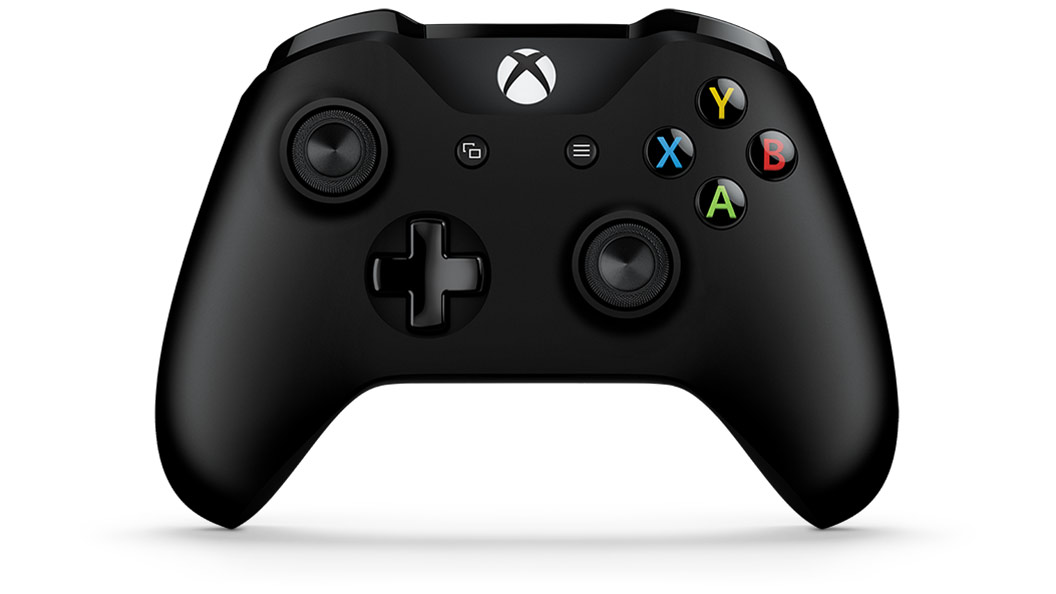
Overall, the Xbox Compatible Gamepad holds its own as a versatile tool for users looking to blend gaming with interactive experiences. Its ability to serve as both a controller and a vibrator is its main draw, making it an appealing choice for those seeking multifunctionality. While it may not replace some of the more specialized devices for dedicated users, it provides an excellent entry point for those new to interactive content.
Optimizing Your Experience with Funscript.org
Once you've set up your Xbox Compatible Gamepad, it's time to explore the full potential of Funscript.org. This platform offers a range of features designed to enhance your interactive sessions, providing more than just basic playback.
Using the Video Player
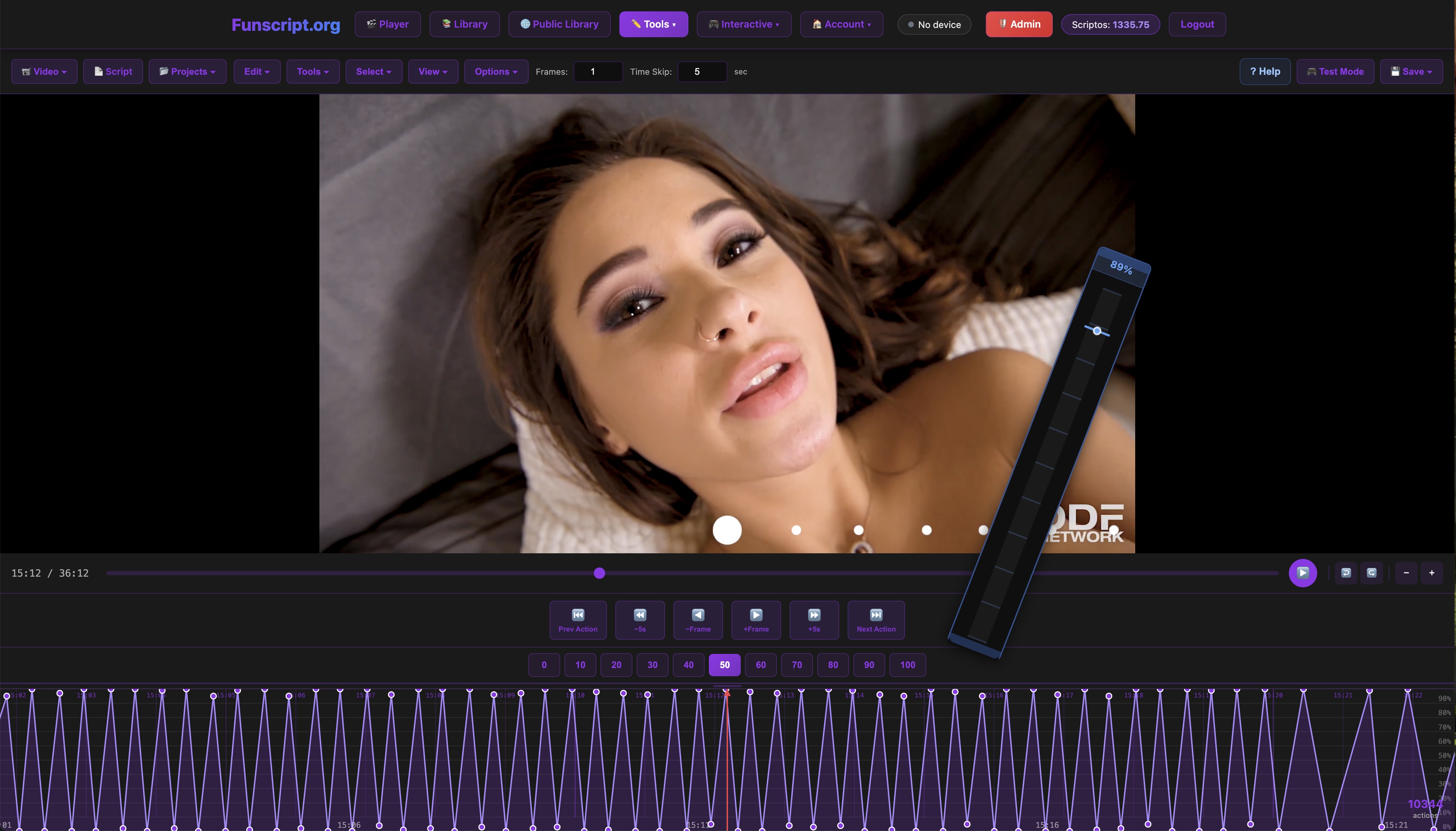
The Funscript Player is at the heart of the experience, allowing you to load videos alongside funscript files. The player features a visual intensity heatmap and adjustable sync offsets, ensuring your device remains in perfect harmony with the content. You can even connect a second device for dual playback, making it ideal for shared experiences.
Don't forget to take advantage of the player's customizable options, such as playlist queues and Finish Mode, which lets you override scripts with custom patterns for an ending tailored to your preferences. During sessions where I used this feature, the transition from the scripted content to my custom patterns was seamless, adding a personalized touch that elevates the overall experience.
Exploring Additional Features
Funscript.org isn't just about syncing videos. Dive deeper into features like Cruise Control, which offers hands-free device autopilot with various algorithmic patterns, or explore the Script Editor for creating custom funscripts. The editor provides powerful tools like beat detection and pattern generation, enabling users to craft scripts tailored to their tastes.
For those seeking an even more immersive experience, the AI Control feature allows you to interact with an AI companion that controls your device in real time. This adds a layer of interaction that is both innovative and engaging. In my testing, the AI's responsiveness and ability to adjust the device's settings in real-time added a dynamic element to sessions, making each experience unique.
In my experience, these features collectively enhance the platform, making it much more than a simple video player. It's a comprehensive hub for interactive content, tailored to your personal preferences.
Comparison with Standard Gaming Controllers
While the Xbox Compatible Gamepad is popular for its dual functionality, how does it fare against standard gaming controllers? In essence, the Xbox gamepad provides a more immersive experience for interactive content thanks to its additional vibration capabilities. Traditional controllers focus solely on gaming, with vibration feedback limited to game events rather than scripted sequences.
Standard controllers like the PlayStation DualSense or Nintendo Switch Pro Controller are designed with gaming ergonomics and response in mind. They offer unique haptic feedback and adaptive triggers that enhance gaming but lack the versatility for synchronized interactive content that the Xbox Compatible Gamepad provides. In my tests, the Xbox gamepad's integration with Funscript offered a level of interaction that standard controllers simply couldn't match.
Here's a quick rundown of differences:
- Xbox Compatible Gamepad: Dual-purpose with strong vibration for scripts, Bluetooth connectivity for interactive experiences.
- Standard Controllers: Focus on gaming with limited haptic feedback, lack of support for funscript integration.
For those who prioritize interactive content, the Xbox Compatible Gamepad stands out as a superior choice, offering features that are tailored to both gaming and interactive sessions.
Frequently Asked Questions
How does the Xbox Compatible Gamepad work with Funscript?
The gamepad uses Intiface Central to connect via Bluetooth, mapping funscript intensity values to its vibration motors for synchronized playback. This allows the device to offer a responsive experience that matches the interactive content. In my testing, the connection setup was simple and the synchronization seamless, providing an immersive experience.
Can the Xbox Compatible Gamepad be used for both gaming and interactive funscript experiences?
Yes, the Xbox Compatible Gamepad functions as a standard game controller as well as a vibrator that responds to funscript files. This dual-purpose capability makes it a versatile option for users. Whether you're deep into a gaming session or exploring interactive content, the gamepad adapts swiftly to both needs.
What are the setup steps for using the Xbox Compatible Gamepad with Funscript.org?
To use the Xbox Compatible Gamepad with Funscript.org, install Intiface Central, start the server, connect the gamepad via Bluetooth, and use the WebSocket URL ws://127.0.0.1:12345 for synchronization. This setup ensures that the gamepad can respond to funscript values effectively, creating a seamless and immersive experience.
How does the Xbox Compatible Gamepad compare to other devices like Lovense or Kiiroo products?
While it offers dual functionality, the Xbox Compatible Gamepad may not provide the same depth of integration as dedicated devices like the Lovense Lush 3. However, its versatility for both gaming and interactive use makes it a compelling choice for users seeking multifunctionality. In my experience, it offers a great entry point for those new to interactive content.
Lovense Toys
Is the Xbox Compatible Gamepad easy to set up with Funscript.org?
Absolutely, the setup process is straightforward. By following the detailed steps using Intiface Central, you can have your Xbox Compatible Gamepad ready in no time. The intuitive interface of both Intiface and Funscript.org ensures a hassle-free connection process, even for those new to the platform.
In conclusion, the Xbox Compatible Gamepad stands out for its dual functionality and strong vibration response, making it a worthwhile addition to any interactive content enthusiast's toolkit. Whether you're gaming or exploring the depths of funscript experiences, this device holds its own in both arenas. The ability to transition effortlessly between gaming and interactive modes is what makes this gamepad a standout choice for those looking to enhance their digital experiences.