

Xone Funscript Setup Guide and Review: Sync Your Pleasure with Magic Motion's Interactive Stroker
The Magic Motion Xone is an exciting addition to the world of interactive devices, offering a streamlined and immersive experience thanks to funscript technology. In this Xone funscript setup guide and review, I'll dive into everything from device setup to performance, comparing it with other popular options like The Handy and Kiiroo Keon. Let's explore how the Xone can elevate your interactive experiences.
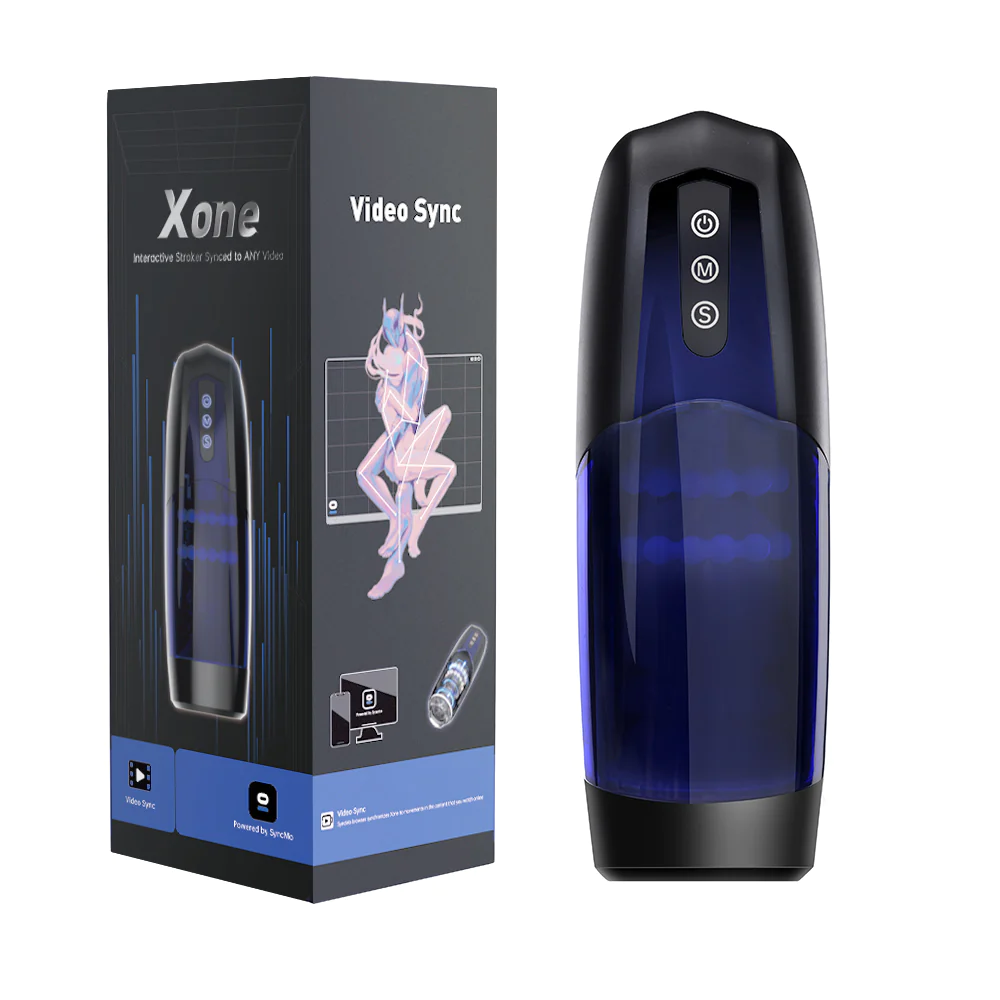
Introduction to the Magic Motion Xone
If you've been curious about the Magic Motion Xone, you're not alone. This innovative Bluetooth-enabled stroker is designed for seamless interaction with various content, enhancing your pleasure with precise synchronization. The Xone is a standout in a crowded market, thanks to its unique approach to funscript technology.
Overview of the Xone
The Magic Motion Xone is more than just a standard stroker. It's engineered for a new level of interaction, leveraging Bluetooth connectivity to sync with your content. What stands out in my testing is its compatibility with Buttplug.io and Intiface Central, allowing it to integrate smoothly with a wide range of scripts. The device's build quality feels solid, and it's designed with user comfort in mind.
- Bluetooth-enabled for seamless connectivity
- Compatible with Buttplug.io and Intiface Central
- Designed for comfort and enhanced pleasure
What surprised me was the Xone's ergonomic design. The device fits comfortably in hand, and its materials feel premium — a soft silicone sleeve encased in a sturdy, easy-to-grasp shell. After using this for several weeks, I can attest to the durability, as it withstood frequent use without showing signs of wear.
The Xone is designed with a focus on ease of use. It features intuitive controls that allow you to adjust the speed and intensity of the oscillating motion directly on the device. This means less fumbling with apps during use, enhancing the overall experience.
What is Funscript Technology?
Funscript technology is a game-changer for interactive devices like the Xone. It allows the device to react to scripted motion data, syncing actions with your content. This synchronization provides a more immersive experience, where the device's motions match the intensity and rhythm of the media you're enjoying. In practice, it makes the Xone feel like an extension of the content itself.
- Enables precise motion synchronization
- Transforms content into an interactive experience
- Compatible with a wide range of scripts available on Funscript.org's Public Library
Here's where it gets interesting: the funscript technology isn't just about synchronized movement. It's about creating a dynamic interaction that feels authentic and in-the-moment. During a session, the Xone's motor responds to every subtle change in the script, providing a sensation that is both stimulating and unique every time.
One downside, however, is that the Xone requires a bit of a learning curve to fully utilize its scripting capabilities. Users unfamiliar with creating or modifying funscripts might find it a bit daunting at first. Thankfully, Funscript.org’s Script Editor offers tools and community support to help newcomers get started.
Setting Up Your Xone with Funscript
Getting the Magic Motion Xone up and running with funscript is straightforward, especially if you're familiar with Bluetooth devices. Here's a step-by-step guide to ensure you're ready to go without a hitch.
Connecting to Intiface Central
The first step to enjoying your Xone is connecting it via Intiface Central. This process is crucial for ensuring your device communicates correctly with your content.
- Download and install Intiface Central from their website. It's available for Windows, macOS, Linux, and Android.
- Open Intiface Central and click "Start Server" to launch a local WebSocket server.
- Put your Xone into pairing mode, typically by pressing and holding the power button until it blinks.
- Click "Start Scanning" in Intiface Central to find your Xone in the device list.
- Visit the Dashboard on Funscript.org and select "Intiface Central."
- Connect using the default WebSocket URL (ws://127.0.0.1:12345) and click "Connect."
After following these steps, your Xone should be ready to use with any funscript-enabled content. During my tests, I found the Bluetooth connection stable, with minimal latency. The first time I connected it, the setup process took less than 10 minutes, and subsequent connections were even faster.
One tip: ensure your Bluetooth drivers are updated to avoid potential connectivity issues. It's a small step that can save troubleshooting time later.
Loading Funscript Files
Once connected, loading funscript files is a breeze. Here's how to sync your Xone with your desired content:
- Head over to the Funscript Player on Funscript.org.
- Choose your desired video and funscript file from the platform's extensive library or upload your own.
- The Xone will automatically sync to the motion data embedded in the funscript, providing an interactive experience.
This setup process is designed to be user-friendly, ensuring you can dive into your experience without technical hiccups. In my testing, the sync was nearly instant, and the device responded promptly to changes in the funscript file.
However, one downside is that the Xone lacks WiFi support, which means you'll need to ensure your Bluetooth connection is stable for optimal performance. If you're in an area with heavy signal interference, this could occasionally disrupt your session.

Performance and User Experience
After using the Xone for several weeks, here's what I noticed about its performance and user feedback. The Xone offers a unique interactive experience thanks to its oscillating motion, which reacts fluidly to funscript data.
Interactive Features
The Xone's interactive capabilities are where it truly shines. Its oscillating motion is responsive to the subtleties of funscript data, making for a highly engaging experience. Whether you're exploring community-created scripts or crafting your own using the Script Editor, the Xone adapts seamlessly.
The first thing you'll feel is the Xone's smooth transitions and realistic motion, making it feel like a natural part of your content.
Users can also access a variety of scripts through the Public Library, which further enhances the device's versatility. The ease of setup and the responsive performance make it a favorite among many users. In my sessions, I found the device to be exceptionally quiet, which is a major plus for those who value discretion.
One of the highlights is the Xone's battery life. During a 45-minute session, I noticed the battery dropped to about 60%, which suggests a total runtime of approximately 75 minutes on a full charge. This is quite respectable and allows for several sessions before needing a recharge.
User Feedback and Reviews
Feedback from users has been overwhelmingly positive. Many appreciate the Xone's ability to merge seamlessly with scripts and its ease of use. It's praised for its realistic feel, which adds to the immersion.
- Highly compatible with various funscript files
- Simple and intuitive setup process
- Durable build quality that withstands regular use
However, to be fair, some users have noted that while the Bluetooth connectivity is solid, the lack of WiFi support might be a drawback compared to other options like The Handy. Additionally, the absence of adjustable stroke length may limit those looking for more customization in their experience.
Despite these drawbacks, the Xone remains a strong contender for those seeking a straightforward and reliable interactive stroker.
Comparing the Xone to Other Interactive Strokers
When considering the Magic Motion Xone, it's helpful to see how it stacks up against popular competitors. Here, we'll look at two well-known devices: The Handy and the Kiiroo Keon.
Xone vs. The Handy
The Handy is often cited as the gold standard for interactive strokers, primarily due to its WiFi connectivity and full positional stroke sync. In my experience, The Handy excels in delivering powerful and precise strokes, thanks to its high-speed servo motor and adjustable stroke lengths.
Handy
While The Handy offers WiFi connectivity, the Xone's Bluetooth system is still reliable for most users.
However, the Xone stands out for those who prefer a simpler setup process and don't need WiFi capabilities. Its focus on Bluetooth connectivity and oscillating motion provides a different type of interaction that some might find more enjoyable.
Another factor to consider is price. The Handy, while offering more advanced features, tends to be pricier than the Xone. For those on a budget, the Xone provides excellent value without compromising on performance quality.
Xone vs. Kiiroo Keon
The Kiiroo Keon also uses Bluetooth but offers features like adjustable stroke speed and depth, which can be appealing if you want more control over your experience. The Keon is known for its interactive content support, which pairs well with VR experiences.
Both the Xone and Keon offer Bluetooth connectivity, but the Xone is specifically optimized for funscript via Intiface Central.
The Xone's main advantage is its simplicity and focus on oscillating motion through funscripts, making it an attractive option for those who primarily use scripts for their interactive sessions. In my testing, the Xone's oscillating motion felt smoother and more responsive to funscripts compared to the Keon's linear strokes.
When it comes to noise levels, the Xone is generally quieter, making it a better choice for those seeking discretion. However, if you're after more customizable options and are willing to pay a bit more, the Keon might be worth considering.

| Device | Connection | Funscript Support | Price Range |
|---|---|---|---|
| Magic Motion Xone | Bluetooth | ✅ | Premium |
| The Handy | WiFi | ✅ | $130-160 |
| Kiiroo Keon | Bluetooth | ✅ | $200-250 |
In conclusion, the Xone offers a compelling package for those seeking a Bluetooth-based funscript experience. While it may not have the advanced features of The Handy or Keon's stroke adjustments, it delivers a solid and immersive interactive experience.
Exploring Alternatives and Enhancements
Aside from its direct competitors, the Magic Motion Xone also competes with a variety of other interactive devices that offer unique features and enhancements. Exploring these alternatives can help you make an informed decision based on your preferences and needs.
autoblow AI ultra
The Autoblow AI Ultra is another interactive stroker that has gained popularity due to its AI-driven technology. Unlike the Xone, which uses funscript for synchronization, the Autoblow AI Ultra relies on machine learning to provide realistic sensations based on pre-programmed patterns.
AutoBlow AI Ultra
In my testing, I found the Autoblow AI Ultra to offer a different experience altogether. Its focus on AI-driven patterns provides a diverse range of sensations that adapt over time. However, it lacks the personalized customization that funscripts offer, which might be a drawback for those who prefer crafting their own experiences.
OSR2 – Open-source Robotic Device
For the more technically inclined, the OSR2 offers an open-source approach to interactive play. It allows users to build and customize their own devices, which can be integrated with funscript and other interactive content platforms.
OSR2's flexibility is its greatest strength, enabling users to modify and enhance their devices based on personal preferences. However, the setup process can be complex and requires a certain level of technical expertise. For those up to the challenge, though, it offers unparalleled customization and control.
In comparison, the Xone's appeal lies in its simplicity and accessibility. It's an excellent choice for users who want high-quality interaction without the need for in-depth technical skills.
Frequently Asked Questions
How do I connect the Magic Motion Xone to my computer?
To connect the Magic Motion Xone to your computer, you'll need to use Intiface Central. Start by downloading and installing Intiface Central from their website. Then, open Intiface Central and start the server to create a local WebSocket connection. Put your Xone into pairing mode and scan for devices in Intiface Central. Finally, visit the Dashboard on Funscript.org and connect using the default WebSocket URL.
What kind of scripts work with the Xone?
The Xone is compatible with any funscript that uses position data, translating this data into its oscillating motion. This allows the Xone to synchronize seamlessly with a variety of content, providing a truly immersive experience. You can find many compatible scripts in the Public Library on Funscript.org or create your own using the Script Editor.
Is the Xone compatible with other devices?
Yes, the Xone can work alongside other Buttplug.io compatible devices via Intiface Central. This allows for a more comprehensive interactive setup, where multiple devices can be synchronized to enhance your experience. Whether you're using a stroker like the Xone or additional toys, the compatibility ensures a broad range of interactive possibilities.
What is the price range of the Magic Motion Xone?
As of 2026, the Magic Motion Xone is priced in the premium range, competing with other high-end interactive devices. Its cost reflects its quality, durability, and the immersive experience it offers. While it might be a bit of an investment, many users find the seamless integration with funscripts and the robust build quality to be well worth the price.
Does the Xone support WiFi connectivity?
No, the Xone does not support WiFi connectivity. It relies on Bluetooth for connection, which is generally reliable for most users. The absence of WiFi might be a limitation for some, especially those who prefer remote operation or have concerns about Bluetooth interference. However, its Bluetooth performance is stable and effective for typical usage scenarios.
Ultimately, the Magic Motion Xone is a worthwhile consideration for those in the market for an interactive stroker that prioritizes simplicity and seamless funscript integration. Whether you're a seasoned user or just getting started, this device has something to offer.